01 / PERFORM → FILE
How to record on Gesture Synth
For a Gesture Synth recording, start an input mode, choose Record 15s, perform, preview the clip and select Download. Open the downloaded file to confirm it plays before making another recording or closing the tab. Sharing comes after this local save. No account, payment or microphone is needed.
Decide on one short musical idea before pressing Record. A phrase with a clear beginning and ending is easier to keep than fifteen seconds of searching for notes. If you are still learning to start sound, use the first-sound tutorial. For a ready four-bar structure, practise the C, G, Am and F chord loop. You can record camera gestures, Mouse Mode or touch playing.
Start and check your input
Open the browser instrument. Choose Start Camera and allow camera access, or use Use Mouse Mode on desktop and the no-camera path on touch screens. Play one sound at a comfortable volume. Wait until you can hear and control it; a silent practice attempt will not become music just because recording is running.
Record one complete idea
Choose Record 15s, then hold or pinch to perform. Release between separate notes or chord attacks. The maximum is fifteen seconds. When available, Stop clip ends the recording early; the instrument’s separate Stop control ends your playing session. Leave a small pause after the final sound so your ending is easy to hear.
Preview before deciding
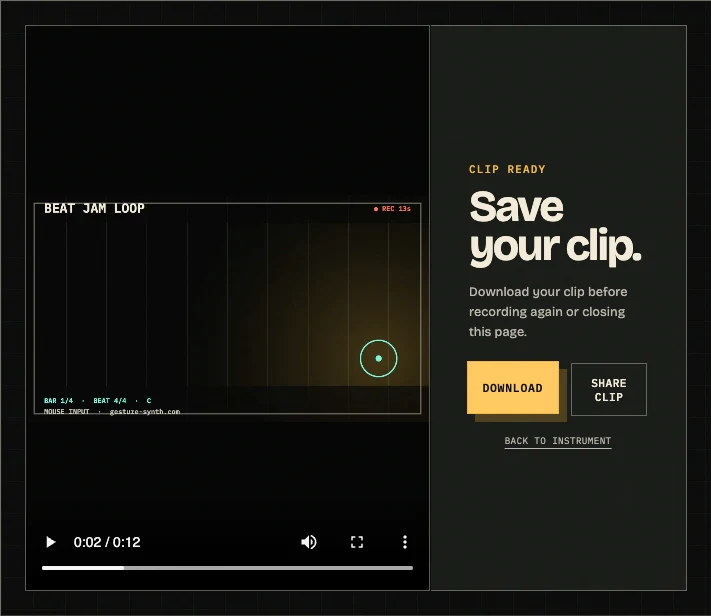
Wait for the clip preview, then play it with sound. Check the beginning, final note and picture. If there is an unwanted gap, decide whether it matters to your short performance. Previewing lets you judge the result, but it does not put a permanent copy in your device’s files.
Download and verify the file
Select Download. Find the clip in your browser’s downloads or your device’s chosen file location and open it. Confirm that the picture and synth sound play. Keep this file before replacing the clip, refreshing, navigating away or closing the tab. Only then continue to sharing or another take.
The recording frame follows the screen: narrow layouts use portrait and desktop layouts use landscape. There is no manual frame picker. If the layout matters for your next upload, make a short test on the intended device first, then record the take you want to keep.
02 / THREE DIFFERENT RESULTS
Choose video, a saved loop or MIDI
These options serve different jobs. Choose video when someone should hear and see your performance. Keep a Beat Jam loop when you want to replay that run in the open tab. Export MIDI when you want to edit its musical notes in another app. Keeping a loop alone does not save a file to your computer.
On a small screen, scroll the comparison sideways.
| Your goal | Choose | What you keep | Boundary |
|---|---|---|---|
| Watch or upload the performance | Record, then Download | Local video with synth audio | Up to 15 seconds; MP4 if supported, otherwise WebM |
| Repeat a completed Beat Jam run | Loop this take | Played chords and gaps in this tab | Reloading clears it; this is not a cloud save |
| Edit the loop in a music app | Stop loop, then Download MIDI | A local .mid file with chords, bass and drums | Notes, not video or exact audio; sounds can differ |
Export a saved Beat Jam loop
Finish a Beat Jam run with at least one played chord. Select Loop this take to hear the saved performance repeat, then Stop loop to return to its controls. Record loop records a local performance video of that saved loop. Download MIDI exports its editable note instructions. Download the format you need before replacing the take or reloading.
MIDI is useful for changing notes or choosing new instruments in another music app. That app may assign different sounds to the chord, bass and drum parts, so playback can differ from the browser performance. This is a file export, not a live DAW connection. Free Melody or Easy Jam playing does not automatically create a MIDI file; the export belongs to a saved Beat Jam loop.
03 / LISTEN, THEN TRY
A real four-bar recording example
This example was performed in Mouse Mode on this instrument. With Root C, it follows C → G → Am → F, one chord per bar at Beat Jam’s 80 BPM. Four bars last about twelve seconds, making a complete little passage within the recording limit. It contains synth sound, with no microphone input.
Download the example Beat Jam MIDI to inspect the note-based version. This is the example performance, not your own take. To make yours, follow the four-bar chord recipe, listen to your saved loop and export from the instrument. For a melody instead, choose a short phrase on the songs practice page.
05 / KEEP WHAT STILL WORKS
Recover without losing the take
When something fails, preserve any working preview or downloaded file first. Repeatedly reloading may remove the only copy still available in the tab. Camera frames and performance clips stay on your device; see the privacy page for the site’s wider privacy and analytics information.
Scroll sideways to read each recovery action.
| What you see | Your next action | Before trying again |
|---|---|---|
| No sound while practising | Check device and instrument volume; hold or pinch inside the stage. | Make one audible note. If tracking is the issue, test Mouse Mode. |
| Preview works, Share fails | Download; upload manually and paste the copied caption. | Open the saved file to check playback. |
| Downloaded file will not play | Keep the original; try a player that supports its MP4 or WebM format. | Do not replace your working preview until a usable copy is safe. |
| MIDI control is not visible | Stop loop and look for the saved-loop controls. | MIDI requires a saved Beat Jam take, not a general video recording. |
06 / BEFORE YOUR NEXT TAKE
Frequently asked questions
Does Gesture Synth recording include sound or my voice?
The performance video includes the synth sound and performance view. Gesture Synth does not request a microphone or record your voice, singing or room audio. If you hear no synth sound during practice, fix playback before starting another recording.
Can I choose MP4 instead of WebM?
Gesture Synth uses MP4 when your browser supports it and WebM otherwise. There is no manual format converter here. Keep the original downloaded file and test it in your intended player or upload app; changing its extension does not convert the video.
What should I do if Share clip is missing or fails?
Use Download to keep the clip, then Copy caption + link if available. Open your chosen app, upload the saved file and paste the caption yourself. A canceled share sheet does not mean the clip was sent, and Gesture Synth does not publish to your social accounts.
Can I recover a take after refreshing or closing the tab?
A clip preview and saved Beat Jam loop are temporary work in the current tab. Reloading or closing it can clear them. There is no account or cloud library to restore a missing take. Download and check your file before leaving or replacing your recording.
Will recording and sharing work on every phone or computer?
Support depends on your browser and device. Narrow screens use a portrait recording layout, while desktop recordings use landscape. Camera access, video format and system sharing can vary. Try a short recording, download it and check playback on the device you plan to use.
Is Download MIDI another way to download the video?
No. Download MIDI exports editable chord, bass and drum notes from a saved Beat Jam loop. It does not contain the performance video or your exact synth audio. Stop the loop to return to its controls, then export the MIDI before reloading the tab.