01 / START SMALL
How to use Gesture Synth for your first sound
This Gesture Synth tutorial is for the instrument at gesture-synth.com. Similar names elsewhere can have different controls. Here, you play with a thumb-and-index pinch in Camera mode, or by holding a pointer on the stage in Mouse mode. You do not need to count raised fingers or turn your wrist to choose a chord. Start with one input, one sound and a quiet volume.
Without a camera
- Open the instrument and choose Play without camera on a touch screen, or Use Mouse Mode on desktop.
- Press and hold inside the playing area. Move a little to the right to reach a higher note; release to stop it.
- Check your device volume and the instrument’s Volume control. Keep the first note short while you find a comfortable level.
This is the quickest way to test sound. It does not request camera permission or wait for hand tracking. On a phone, use one finger on the playing area; the rest of the page remains ordinary navigation.
With your camera
- Choose Start Camera and allow this site to use the camera when your browser asks.
- Wait for the preview and hand tracking to be ready. The first start may take longer while the hand model loads.
- Show one hand clearly. Bring your thumb and index finger together to sound a note, then separate them to stop.
Use even lighting and keep your hand inside the preview. The preview is mirrored, so move in the direction you see on the stage. Try one hand before adding a second. Stop releases the camera when you are finished.
02 / MOVEMENT → MUSIC
Learn what each movement changes
In Melody, horizontal position chooses a note from the selected scale. The notes are separate steps, so moving between them changes the note rather than producing a continuous slide. Vertical position changes brightness: higher is brighter, lower is warmer. Pinching or holding controls when the note sounds. Keep your hand steady vertically while learning a tune so pitch and tone do not change at once.
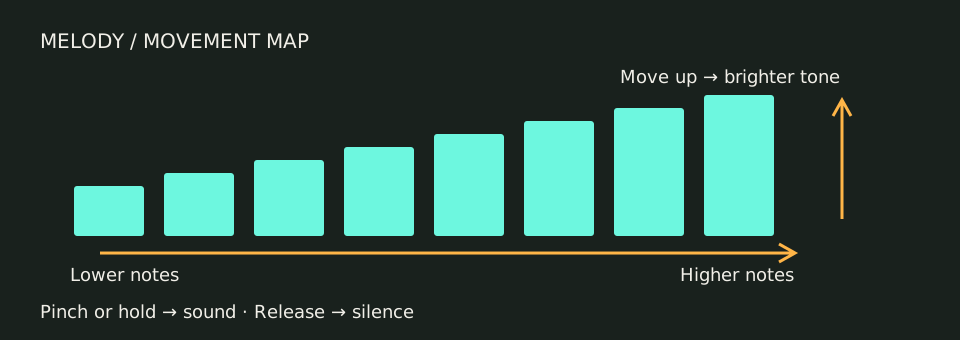
Root sets the starting note. Scale selects the available steps: Pentatonic skips some notes, Major includes the familiar seven-note pattern, and Minor gives a different set of intervals. Wave changes the character of the sound. Triangle is a gentle starting point; turn the volume down before trying brighter sounds. These choices change the instrument, not a saved recording.
Choose the mode that fits your task
| Mode | Best first task | What to do |
|---|---|---|
| Melody | Play individual notes | Move across the note positions; release between repeated notes. |
| Easy Jam | Explore four chords | With C as Root, move between C, G, Am and F. Hold to play the selected chord. |
| Beat Jam | Finish four bars with a beat | Start the count-in, then hold or pinch the highlighted chord through the guided bars. |
Easy Jam is a chord shortcut, not a piano keyboard with every possible chord. Beat Jam gives you a short musical structure rather than a blank arrangement project. You can switch back to Melody for note practice. If a song uses chords outside the available set, choose another exercise instead of assuming a similarly named tool’s instructions will work here.
03 / YOUR FIRST PHRASE
Play the opening of Little Star
Choose Play Little Star for the built-in seven-note opening. The guided phrase uses C Major and shows the next target note. Follow C4, C4, G4, G4, A4, A4, G4. Release between the two Cs, two Gs and two As so they become separate attacks. The final G can last longer. This is a short practice phrase, not automatic playback of the whole song.
To practise manually, choose Melody and Root C, then open Sound settings to select Scale Major and Wave triangle. With the two-octave C Major note row, aim for the centres below. Percentages refer to the entire playing area, measured from its left edge; do not measure from the browser window or split the width into only seven notes.
| Note | Approximate horizontal centre | Practice |
|---|---|---|
| C4 | 3.6% | Hold, release, hold again |
| G4 | 32.1% | Two separate sounds |
| A4 | 39.3% | Two separate sounds |
| G4 | 32.1% | Hold the closing note |
Watch the displayed note name rather than trying to hit a pixel perfectly. Move without holding to find a note quietly, then hold to sound it. The note row is useful feedback: if the target says G4 but you see G5, you have moved into the second octave. Move left and try again.
Practise slowly before recording. The 68 BPM setting describes this example; it is not a tempo control for free Melody playing. For another note sequence and a four-bar chord exercise, use the Gesture Synth songs and practice page. You can keep that page open beside the instrument.
04 / KEEP YOUR TAKE
Record video, save a loop or download MIDI
For a performance clip, start the instrument, choose Record 15s, then play. You can stop the clip early. When the preview is ready, download it before closing the page or making another recording. The clip combines the instrument’s sound with the performance view; it does not record singing from your microphone. Camera frames and performance recording stay on your device.
Compatible browsers create MP4; others use WebM. Narrow screens use a portrait layout. A downloaded file is the reliable way to keep the result. If your browser offers Share clip, you can choose a compatible target in the system share sheet. If sharing fails or is unavailable, download the file and use Copy caption + link. Upload it yourself to your chosen app; this site does not publish to your accounts.
For Beat Jam, finish a run with at least one chord, then choose Loop this take. The loop keeps what you actually played across the four bars, including gaps. You can play, stop or record that saved loop. It is held only in this tab: reloading clears it. Replacing a take also means the old one is no longer your working loop.
Choose Stop loop to return to the saved-loop controls, then Download MIDI saves editable chords, bass and drum notes from the loop. A MIDI file contains note instructions rather than your exact audio; instruments in another music app can sound different. This is file export, not a live MIDI connection to a DAW. Save video if you want the sound and picture as performed; save MIDI if you want to edit the notes elsewhere.
05 / GET UNSTUCK
Questions before your next take
Why is there no sound?
Start a mode by clicking its button, check device and instrument volume, then hold or pinch inside the stage. Moving alone does not sound a note. If the camera is still loading, try Mouse Mode to separate a sound problem from a tracking problem.
What if camera access is denied or busy?
Allow access in your browser’s site settings, or close another app using the camera. You can keep playing without a camera instead. Do not repeatedly reload while a permission prompt is waiting; finish or cancel the current attempt first.
Can I use a phone or tablet?
Try the touch path first. Camera tracking depends on browser support and device performance; a desktop with a steady camera is often easier for learning. System sharing also varies. If a file cannot be shared directly, download it and upload through your chosen app.
Is this a hand-tracking vocoder?
This instrument makes synth notes controlled by your movements. It does not accept your voice or transform speech, and it does not request a microphone. If you want vocal effects, that is a different task from playing this synth.
Do I need an account or an app?
No. Open the browser instrument and choose an input mode. You do not need to register, pay or install an app. Keep your recordings by downloading them; there is no cloud library that restores a take after the tab closes.
Ready for a short take? Open the instrument, use Mouse Mode and complete one phrase before adding camera movement.