01 / BROWSER → TOUCH → SOUND
Start Gesture Synth mobile with touch
You can try Gesture Synth for free on a phone or tablet in the browser, without downloading an app or creating an account. Start with Play without camera. Touch and hold the playing area to sound a note, drag horizontally to change pitch, and move vertically to change brightness. Release your finger to end the note.
Touch lets you check sound and note control without camera permission or AI tracking. Try an ordinary Safari or Chrome tab on your device. Camera mode is an optional next experiment; its performance and browser capabilities need checking on that device.
Open the instrument in a normal browser tab
Open Gesture Synth. Use your device's regular browser rather than relying on a social app's embedded browser. Keep the tab open while you practise and save anything you want to keep before leaving.
Set a comfortable listening volume
Start at a moderate device volume. Check where sound is routed, especially if headphones or a Bluetooth speaker are connected. Raise volume gradually after your first audible note.
Choose Play without camera
This opens the touch path. You do not need to approve a camera request for it. Begin in Melody with the current musical settings and focus on one sound.
Hold inside the playing area
Keep one finger down on the stage. Listen for the note, then lift your finger to stop it. Try another hold before dragging so you can separate the start gesture from movement.
Move in one direction at a time
Hold and drag left or right for pitch. Next, hold near one horizontal position and move up or down for brightness. Select Stop when you finish the session.
02 / ONE FINGER, THREE SMALL EXERCISES
Make touch control predictable
First practise hold and release: make a short sound, lift your finger, pause and repeat. The silence between notes is part of your performance. A long uninterrupted drag can make it harder to hear where one note ends and the next begins. Deliberate pauses help you learn the stage before adding a melody.
Explore pitch with a slow horizontal drag through discrete scale notes. Settle and listen before moving again. Then move vertically near the same horizontal position to hear brightness change. Up and down are not a volume gesture.
Use one active touch pointer for this path. Do not expect a phone's multi-finger touches to become the two independent hands available in camera Melody. A short, controlled phrase is a better starting task. The songs page offers practice ideas when you are ready, and the complete tutorial explains the modes.
03 / HANDS IN THE AIR, DEVICE AT REST
Try camera mode after touch works
Choose Start Camera if you want to try hand gestures. Allow camera access when the browser asks. Put the device somewhere stable, keep the full hand in view and use enough light to see the fingers clearly. Trying to hold the phone and perform with the same hand makes framing unnecessarily difficult.
In camera Melody, pinch your thumb and index finger to start a note. Move horizontally for pitch and vertically for brightness, then separate the fingers to stop. The AI and sound explanation describes why hand recognition and musical controls are different steps. Camera mode does not require your voice or a microphone.
Tracking can vary with hardware, browser, lighting and framing. If touch sounds correctly but camera playing is hesitant, work on the camera view before changing musical settings. Mobile camera performance has not been verified across physical devices here. You can keep using touch while deciding whether the camera experience suits your setup.
04 / CHOOSE A COMFORTABLE SETUP
Phone and tablet tasks are different
A phone is convenient for a quick touch phrase: keep it secure, make room for a slow drag and avoid starting at the very edge of the screen, where device gestures may interrupt you. Pause between exercises to check whether your touch is still inside the playing area. Moving beyond it is different from the synth choosing a wrong note.
A tablet offers more touch space and can be easier to position for camera experiments. Choose by your task, rather than assuming a larger screen guarantees faster tracking or native sharing support.
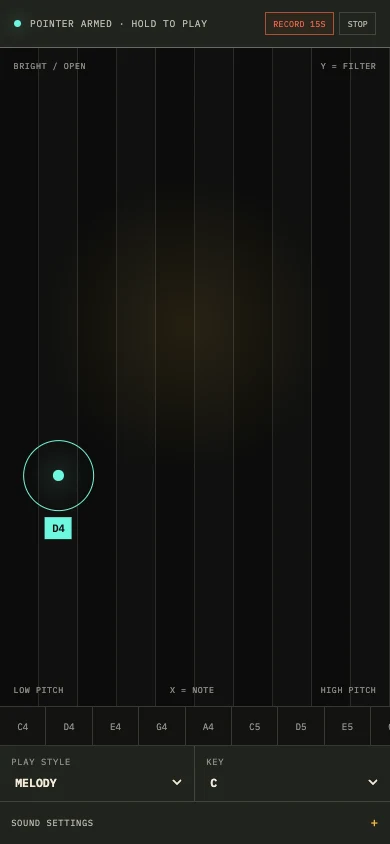
Settle on the orientation before recording. Narrow screens use portrait automatically; desktop layouts use landscape. There is no frame picker. Test in your intended orientation, then check the saved picture.
05 / A PREVIEW IS NOT A SAVED FILE
Record a mobile performance and keep it
Once you can play audibly, choose Record 15s and perform a short idea. The clip records the instrument's synthesized audio, not a microphone or room sound. The Stop clip · Ns control ends the clip early, with the remaining seconds shown in place of N. The separate Stop button ends the playing session.
Preview the result, select Download and open the saved file to check both picture and sound. A phone's narrow layout records in portrait, automatically using a 9:16 frame. Keep the downloaded video before refreshing, closing the tab or replacing the take. A preview still in the page is temporary, and a saved Beat Jam loop also lasts only in the current tab.
Try Share clip when offered, but complete the destination's flow yourself. A canceled or failed share does not publish anything. If native sharing is unavailable, download the video, copy the caption and link when available, then manually upload and paste them in your chosen app. System sharing has not been checked on physical mobile devices in this verification.
The recording guide explains video formats, saved loops and MIDI in more detail. If you want a compact chord performance, follow the four-bar chord recipe. Download what you need before leaving; there is no account library to recover an unsaved take.
06 / CHECK ONE LAYER AT A TIME
Find the next useful action
Separate input, audio, camera and saving problems. If touching the stage changes the view but makes no sound, first check audio output and volume. If touch works and camera does not, focus on camera permission and framing. A black camera preview is not a reason to enable a microphone.
Scroll sideways on a small screen. Keyboard users can focus this region and use the arrow keys.
| Task | What to check | Next action |
|---|---|---|
| Touch playing | A hold inside the stage starts sound; release ends it | Test a stationary hold before dragging; check audio output if silent |
| Camera playing | Permission, visible full hand, stable device and light | Check browser site permissions and system camera settings; return to touch if needed |
| Recording | The preview has synth audio and the expected frame | Download a short test and open the actual saved file |
| Sharing | A destination accepts the file and completes its flow | Keep the download; upload manually if the share sheet fails or is absent |
Change one thing at a time. Keep a working download before retrying. For help, contact Gesture Synth with your device, browser and the step that failed.
QUESTIONS / CLEAR ANSWERS
Frequently asked questions
Can I use Gesture Synth mobile without downloading an app?
Yes. Open Gesture Synth in your phone or tablet browser and choose Play without camera to start with touch. It is free and needs no account. You do not need to install an app or enable a camera to try the touch instrument.
Does touchscreen playing use AI or camera permission?
No. Touch supplies hold and position input directly. Hold the stage to play, drag horizontally for pitch, move vertically for brightness and release to stop. Camera mode is a separate optional path that uses AI hand tracking.
Will it work on every iPhone, iPad or Android device?
That is not verified. You can try a normal Safari or Chrome tab, starting with touch. The narrow-screen example uses desktop Chromium touch emulation at 390px, not a physical phone. Camera performance and native system sharing still require checks on your device.
Why is touch silent or the camera preview black?
For silent touch, hold inside the stage and check device volume and audio output. For camera problems, check camera permission, framing and light. Review browser site permissions and system camera settings if needed. No microphone permission is required; touch remains an alternative.
Can I record a portrait video on my phone?
Narrow layouts automatically use a 9:16 portrait recording frame. Choose Record 15s, perform, preview and Download. The clip contains synth audio, not microphone sound. Open the saved file to check it; read the recording guide before replacing your take.
What if sharing fails or I close the tab?
Download and check the video before leaving. A clip preview and saved Beat Jam loop are temporary in the tab and can disappear on refresh or close. If sharing fails or is unavailable, manually upload the downloaded video and paste your caption; nothing is posted automatically.